

Import and migration
Strapi v4/v5 import is the first migration boundary. It is a supervised pilot, not a promise that every production archive or deployment limit has been accepted. The product boundary separates local evidence from real-site migration acceptance.
Before importing
Section titled “Before importing”Keep an untouched export and a verified backup of the destination. Record source identity, export time, expected counts, languages, published/draft expectations and media ownership. Use a disposable destination first. Decide explicitly which source partition belongs to each destination site. Never infer ownership from matching slugs or copy one site’s data into another because they share a database.
Inspect and map
Section titled “Inspect and map”Open Settings → Data transfer, then Start import on the Import data card. Select the supported Strapi source and supply the archive the UI requests. Inspection is not acceptance. Review every discovered content type, field, relation, locale and media source. Choose a new model, an existing model or skip for each type. Match field types and primary language deliberately. Unresolved or ambiguous mapping must block the run. Creating models and adding languages need the corresponding permissions.
A new field in an existing model cannot reuse a key that the model’s kept versions still hold values under. The import’s model step is then refused with model_change_blocked, each such key is listed as retained_key_reuse, and no field is added. Otherwise an old value could come back under the new field. Put that source field into another field, or leave it out.
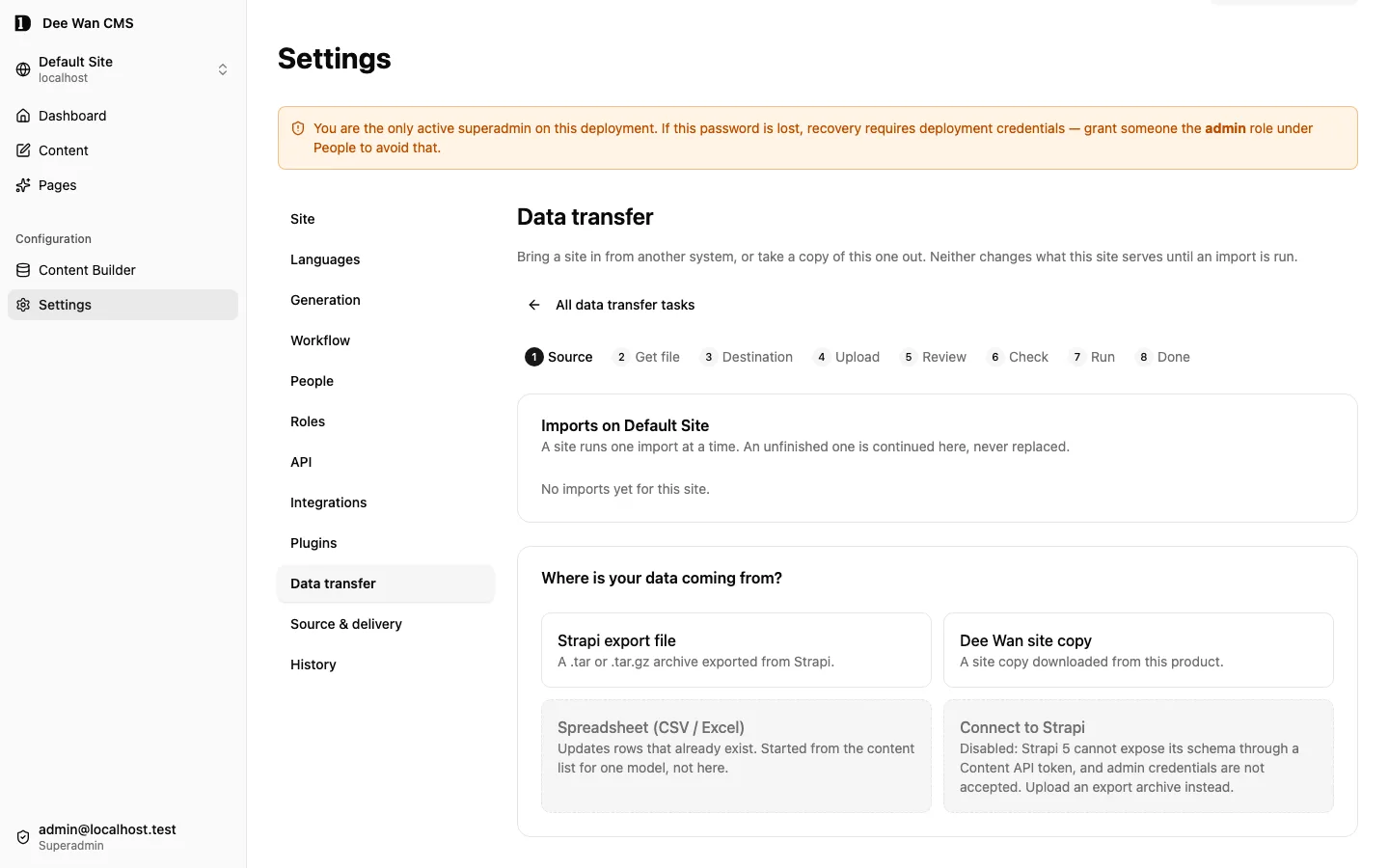
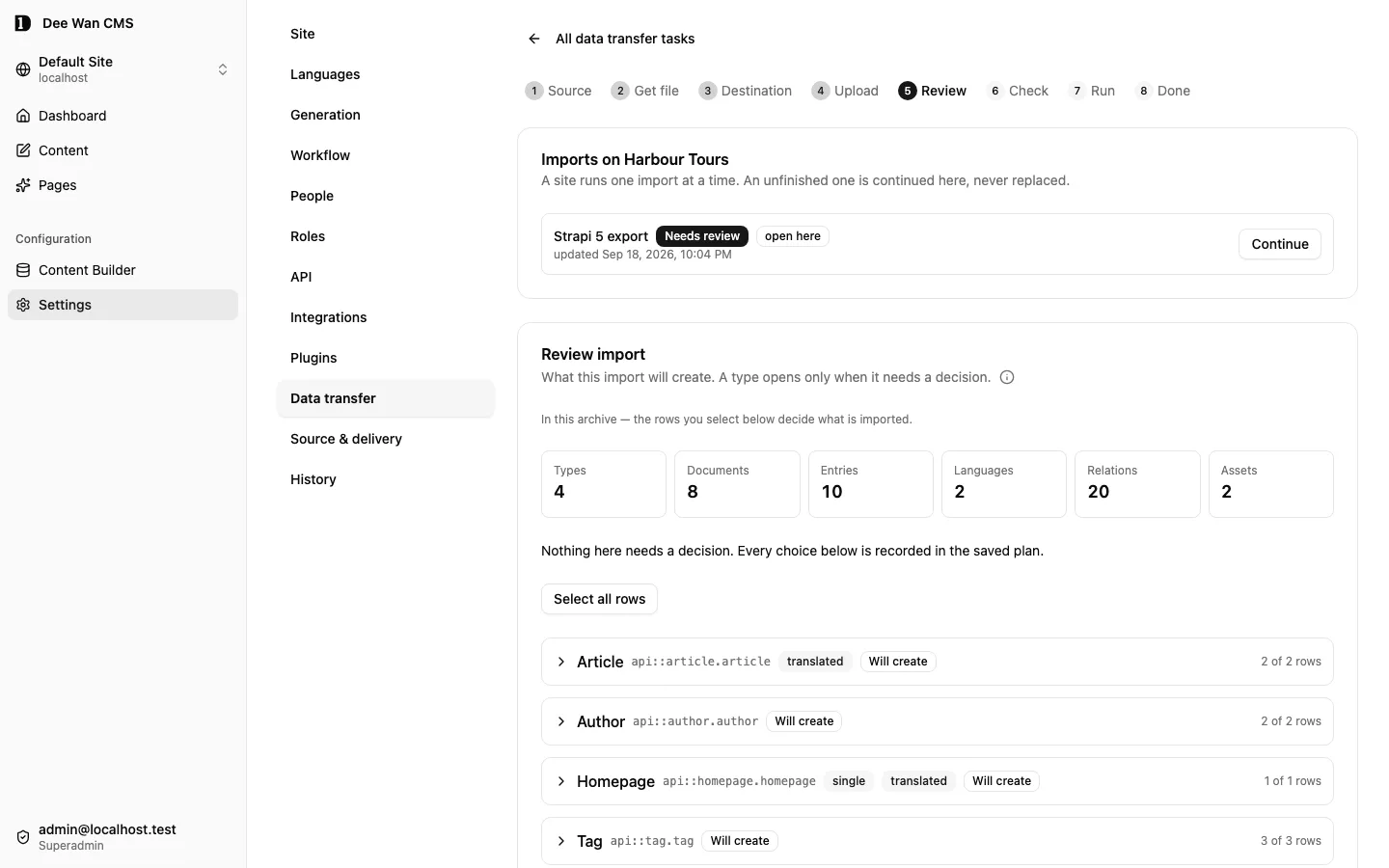
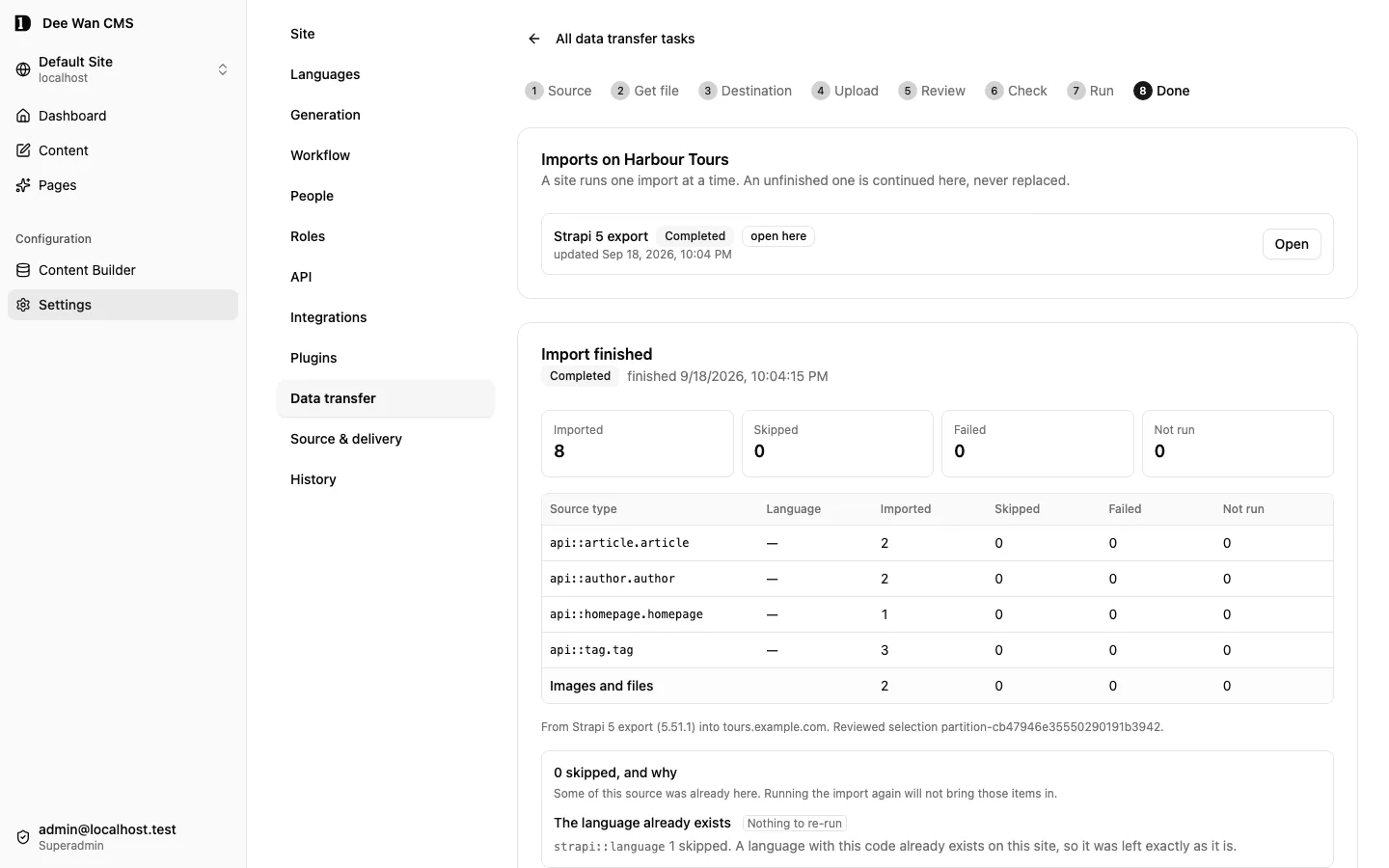
The import screens proceed through source, review/mapping, check, run and done. The review screen is where source-to-destination identity is chosen, not a place to accept guessed ownership.
Cancel this import is on the upload, review, WordPress review, check and run screens. It asks first, stops the work on the page, cancels the job and opens the result. A cancelled job frees the site for another import. Committed changes stay. Ordinary create-only imports can be undone separately; selected-content refresh has no automatic Undo. Start a new import on an import that is still open asks first (Cancel and start again), cancels it, then starts over. If the job cannot be cancelled in its current state, the screen says so and sends nothing. If the cancel is refused, the wizard stays where it is and shows why.
An archive whose reading stopped part-way (during extraction or inspection) opens on the upload step with a note. Continue reads on from where it stopped. Cancel this import frees the site instead.
Strapi components, dynamic zones and single types
Section titled “Strapi components, dynamic zones and single types”- Component definitions. Each Strapi component a mapped type uses becomes a component this site owns. Its slug is the category and name:
shared.seobecomesshared-seo, named “seo (shared)”. A component inside a component comes along. Components may nest up to 3 levels below the component a field names, the same limit components built here follow. A deeper chain, a chain that contains itself, or a component value with more than 5,000 values or more than 256 KiB blocks the types that use it (component_nesting_too_deep,component_cycle,normalize_component_too_large) and names the chain or the field’s path. Nothing is cut off. - Fields. A component attribute becomes a component field allowing that component, a list when Strapi made it repeatable. A dynamic zone becomes a block list allowing the zone’s components: each block keeps its source position, names its component and the definition version, and is shown.
- Values inside components. Rich text becomes rich text. Files become the imported media and are pinned per version like any component media. A relation inside a component points at the imported entry. A relation to a type the mapping skips is left out of the component (
component_relation_not_imported). A relation inside a component shows its target by the target’s title field, else itstitle,nameorlabelfield; a target with none blocks (component_relation_display_unknown). - Field keys inside components. A component field key is lowercase letters, digits, hyphens and underscores. A Strapi attribute that does not follow this format is kept under a deterministic key: lowercase, each run of other characters as
_(SKUbecomessku). The review lists each change (component_field_key_normalized) and the stored values move with it. Two attributes that become one key, or an attribute with no usable key left, block the types that use the component (component_field_unmappable), naming the source path. - One-to-many relations inside components. A component value stores a relation’s order and targets, but cannot enforce a single owner for a target, so a one-to-many relation is kept as many-to-many. The review lists it (
component_relation_remapped). The check refuses a source where two entries hold the same target through the same component field (component_relation_target_shared), naming the field. Choose which entry owns the target and exclude the others. - Languages. A localized component or zone keeps each language’s own value. A component that is not localized keeps the primary language’s value.
- The site’s own components. A component this site already owns under the same slug with the same fields is reused, so a second import from the same source writes nothing new. Different fields under that slug (
component_slug_taken), a shared component with that slug (component_shadows_shared), or another component with the same name (component_name_taken) block the check. - Adding to an existing model. Its fields for the source’s components must be component fields allowing the same components with the same list shape (
component_field_mismatch). - Single types. A Strapi single type becomes a single-entry model: one entry, with its languages. The review screen marks it single. The check blocks when the selection or an existing single model would hold a second entry (
single_entry_many,single_entry_exists). - Private fields. A Strapi attribute marked
privatebecomes a private field: kept for editors, never served publicly. Password attributes are never imported. - Media folders. A Strapi 4 or 5 archive’s folders are recreated in the media library from its folder entities and their parent and file links, never from file paths. Only folders that selected files sit in, with their ancestors, are created. A folder already at the same path in the site is reused. A file with a folder path but no folder link imports Unfiled and is reported (
media_folder_link_missing). The dry run blocks a folder the library cannot hold: unusable name, missing parent, cycle, more than 5 levels, a sibling differing only by case, or past 500 folders. Nothing is renamed. Undo removes only folders this job created that are empty. - File type recorded wrongly. Strapi can record one image type, such as WebP, for a file whose bytes are another, such as JPEG or PNG. A Strapi import stores the file using its real type and keeps the file name when both the recorded and real types are JPEG, PNG, WebP, GIF or AVIF and the site accepts the real type. Each such file is a warning (
media_type_corrected) naming the file, the recorded type and the stored type; the import result shows them in their own block and the receipt download lists every one. Any other disagreement still blocks the file: SVG, a non-image, or a type this site does not accept. Uploads in the admin are not changed by this. - Permissions. Strapi’s end-user roles (Public, Authenticated) and their API permissions are listed and not imported (
strapi_permissions_not_imported). Imported models are public, as new models are; set each model’s visibility after import. An export carries no admin roles. - Review. The type card names each component field by its component, and a dynamic zone by its blocks. Components lists every definition the import writes, its fields and the types that use it. The management mapping read (
getImportMapping) returns the samecomponentslist, paged liketypes. - Undo and site copy. Undo removes the component definitions the import wrote once no field uses them; a definition another model now uses, or one edited since, stays. A site copy carries the definitions and remaps every relation inside component values to the copied entries.
- Not proven yet. The recorded archives have no repeatable component attribute and no non-password private attribute. Both follow the rules above but are not tested against a real export.
Check, run and resume
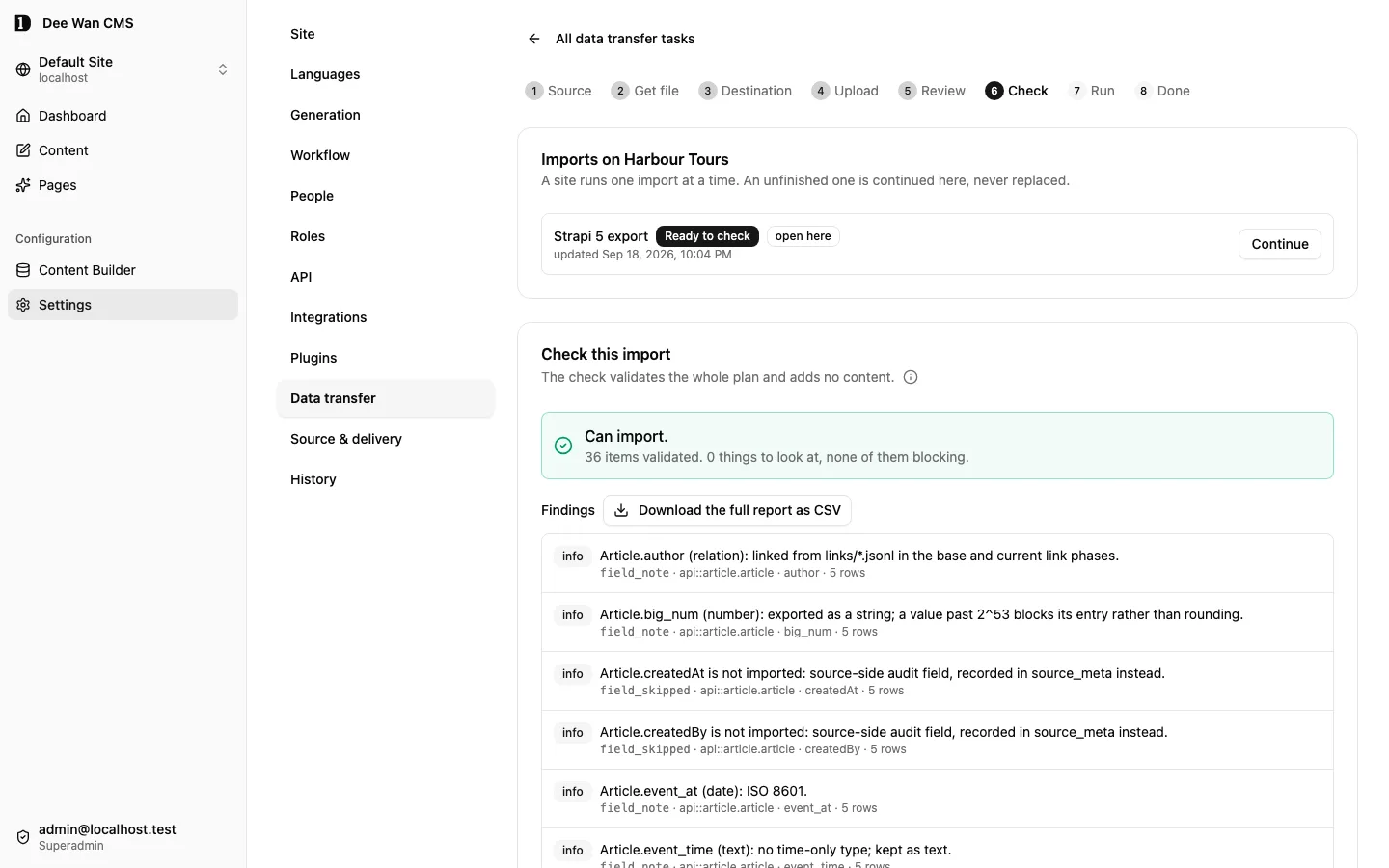
Section titled “Check, run and resume”Save the mapping and run the check before starting writes. The check writes no site content, only the job’s check state. While it runs, Run the check becomes Stop. Stop only stops this page: a request already in progress may still finish. A stopped or unfinished check says so, and Check again runs it again. Resolve blocking findings. Retain the accepted mapping with the source archive. Each entry’s address is the source’s slug or chosen URL field, normalized by the item address rules. One with no letters or digits blocks the check (slug_invalid). A chosen URL field that names a different address from the entry’s slug field blocks it too (slug_conflict). Read the URL from slug, or make them match. The check judges every entry by the destination’s field rules, required relations and media and their item counts included. This holds whether or not the entry has links. Start only the intended job and site. On interruption, resume that job rather than creating another with a new source identity. A repeatable rerun is not permission to discard refusal details or overwrite another site’s rows.
The check reviews the destination’s content types and components as they stand when it starts. If a field is added later, or renamed onto a key, or a component field starts allowing another component, the run refuses each entry or carried version that holds a value under the key the change claimed: 409 import_definition_changed, naming the key. Running again does not change this, because the archive and its values stay the same. Nothing of that entry or version is written, and what already landed stays. Give the new field another key, then continue the run. Entries and versions without a value there continue. A field the import adds itself does not count as a change. While a component change holds a content type, writes to it wait (component_migration_in_progress) and continue once it finishes.
A site copy or history file carries private files too, with their bytes, checksums and visibility. The check blocks with private_storage_unavailable when this installation has no private file storage, before anything is written. The run stores each private file in that storage and never in the public bucket, and undo removes it from there. A model that is private in the file arrives private. If a model with the same key already exists here as public, the check blocks with model_visibility_public, so private entries are never shown publicly. Building that file needs data:export and read access to the media library; a content-only export (CSV, JSON, XLSX) never depends on a private library file. See Media.
A site copy or history file also carries the source’s own field definitions. A carried value keeps the key its source field had, even when the source has since removed that field. A field here with the same key is not that field. If this site’s content type or component has a field under a key such a value sits under, and the source did not define that key, the check blocks with unmapped_source_key, naming the key (component.key inside a component). This holds whether the field was here before the check or was added later. It covers carried versions, a language’s live version in a site copy, and published or current values. A run refuses the same value with 409 unmapped_source_key on every attempt and writes nothing of it. Give this site’s field another key, then choose Check again. A field added after the check is first refused as import_definition_changed. Fields under keys no carried value uses, and fields the import adds itself, are not affected.
The source’s privacy travels too. When the source keeps a field private, and this site’s field under that key is public, the check blocks with source_private_value. This covers a private component attribute and a private component field around it. A run refuses the same value with 409 source_private_value. Findings and refusals name keys, never values. Make this site’s field private in the model or component editor, then choose Check again. A public source field imported into a private field here is fine.
The check also refuses a value that no save here could write. If a published, current or language version holds a key the destination content type will not have, the run would fail with unknown_fields. The check blocks it first with unsupported_source_key and writes nothing. If the source no longer defines the key, save and publish the entry in the source without that value, export a new file and import that file. The rejected file stays with its job. If the source still defines the key and this site’s content type lacks it, add the field here, private where the source’s is private, then choose Check again. Older carried versions may keep a retired key, because nothing here reads it.
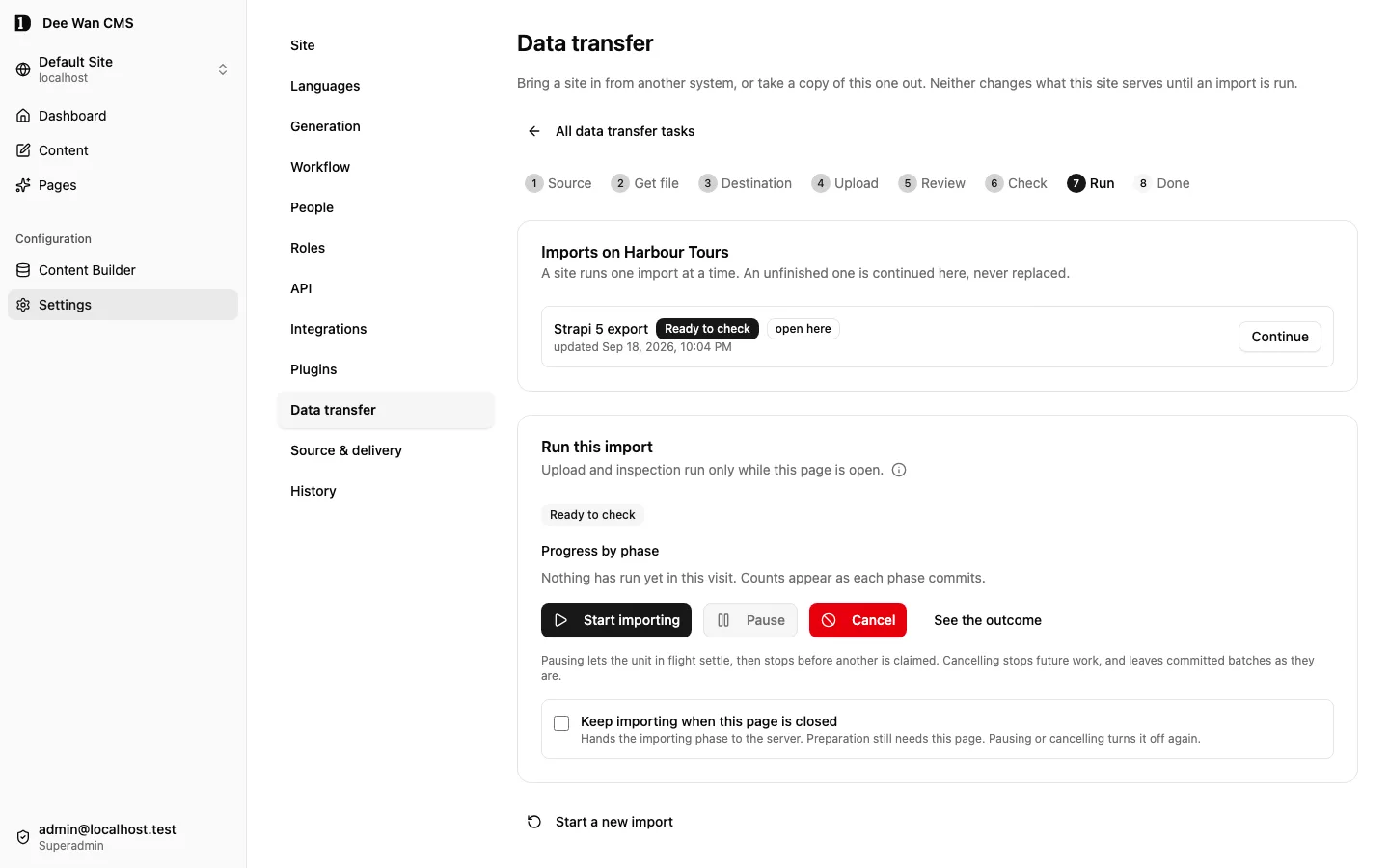
Keep the source, mapping and completion/refusal result together. Verify primary entries, translations, relations, referenced media and publication state against the expected source partition. Reconcile counts by site and model, not only a global total. Confirm that destination A cannot read destination B’s imported records.
Undo and stuck files
Section titled “Undo and stuck files”For ordinary create-only imports, Undo on the done screen reverses what the job created and nothing else. Selected-content refresh has no automatic Undo. A file can get stuck when an earlier import write or undo delete never reported back. Undo then waits on it and cannot finish by itself. The undo section shows A file is stuck for each such file.
The screen shows the site, job, item, old storage key, expected digest, what undo is waiting on, when undo last checked the key, and a live check of the key made when the screen loaded. Still used here says whether a media row in this site still uses those bytes.
To finish, tick the acknowledgement and choose Abandon old key and finish. This needs the data:import permission. The outstanding write or delete may still land on the old key later, and nothing cleans that key up afterwards. The old key stays reserved forever and is never used again. A receipt records the decision: who, when, the evidence shown and the acknowledgement. If the key changed after the screen loaded, the action is refused. Choose Check again and decide on the new evidence.
If bytes came back at the old key and no media row uses them, the action is blocked. Choose Continue the undo first: it removes those bytes. A later import of the same asset writes to a new key.
Native site files
Section titled “Native site files”A site copy carries current content and any differing published versions, models, fields, languages and media. It excludes edit history, accounts and credentials. Settings, workflow definitions and generation-context documents are included for comparison only; importing does not apply them. Choose Transfer with history for all retained content versions and workflow events. Neither product is a full installation backup; see backup and restore.
New site copies and history transfers download as .deewan files. Use the same import wizard to upload them. Building, uploading, verifying the completed upload, preparing and applying the file resume from stored progress; reopen the stored export job to continue a failed download. In Brave, saving to a chosen file writes verified chunks directly to disk. The browser download remains available when the file picker is unavailable.
History transfers carry all retained history without the earlier 20,000-row or 64 MiB archive limit. The archive upload limit is 52,428,800,000 bytes (about 48.8 GiB, including transport overhead). Verification reads at most 32 MiB per request and resumes by job ID after an interruption; you do not have to upload the file again. Individual media files follow the destination installation’s normal file limits, up to 5 GB where enabled; they are copied in chunks and checked against their full checksum. Private originals and their previews stay private. The destination must allow the file’s type and size. Nothing silently drops an oversized record or a missing file: preparation or the check names the refusal, and the job remains resumable.
A record may be up to 8 MiB. One model configuration or component dependency graph may be up to 16 MiB; one import work item may load up to 32 MiB. A source item that cannot fit a bounded processing pass is refused with a named reason. Splitting the archive does not bypass these per-item limits. Large groups of workflow events are split without discarding notes. Each stored event, including its note and identifiers, must fit the 1,900,000-byte row limit (workflow_event_too_large).
People and assignment reviews are paged. Suggestions apply to the current people page; saved choices remain when you change pages. CSV and XLSX exports keep their separate row and size limits. Earlier JSON site files remain readable with their existing 64 MiB archive, 32 MiB embedded-file and 10,000-character workflow-note limits.
Schema promotion
Section titled “Schema promotion”Switch to the destination site and open Content Builder → Compare models. Choose an accessible source site and model. Models match by their stable API slug, fields by key; translated labels do not determine identity.
Choose Compare, select the model details and field additions, changes or removals to carry over, then compare the selected changes. Removals start unselected. Review changes creates a proposal and opens the normal model editor; Save applies it only after the existing compatibility checks pass. Creating a model requires explicitly selected fields. No content, permissions, workflows or credentials are copied.
Both source and destination definitions are pinned to the comparison. Changed definitions or lost source access require a fresh comparison. Stored destination values, retained definitions, relation targets, components and uniqueness rules keep their normal guards; promotion cannot force an incompatible overwrite. A field kept by key keeps its destination ID, and a new field receives a new destination identity.
The admin endpoints are POST /api/models/promotions/check and POST /api/models/promotions/propose. Their request names source_site_id, source_model_id, target_model_id (or null for a new model), and selection: { metadata, fields, remove }. Propose also names the check’s source_revision and target_revision. The resulting schema proposal follows the ordinary review/apply flow; revision mismatches return schema_promotion_stale.
Refresh selected content
Section titled “Refresh selected content”Use Refresh selected content on the Check this import screen to update a populated CMS staging site from a new native site copy. Ordinary import still adds missing records and skips records already imported. History files and WordPress imports use their own workflows.
- Upload and prepare the latest site copy in the destination’s import wizard.
- Choose Refresh selected content, then select up to 50 models. The source and destination field definitions must agree.
- Choose Review changes. Review the counts and every page of additions, updates, entries to move to Trash and retained entries. A destination entry missing from the source is a removal within the selected models, including entries created locally. Matching uses the source identity, never a guessed match by title or address.
- Resolve blockers. An entry outside the selected models may still refer to a removal. Include the relevant model or choose Keep this entry for the target, then review again. At most 200 individual targets can be retained. Retention choices persist across pages and reloads.
- Acknowledge replacement without Undo, then choose Use refresh plan. Continue through the ordinary Run the check, Continue to run and Start importing actions. Confirming the plan does not apply the content.
The refresh coordinates selected content relationships and required media. Other models, application accounts, roles and site configuration stay unchanged. Source deletions move entries to Trash; they are not permanently purged. The review and run refuse destination changes after review instead of overwriting newer work. Before importing starts, review the changes again. After any batch has committed, cancel this job and upload the current source copy as a new job to review the remaining changes; committed work stays in place.
A refresh has no automatic Undo. Keep a destination backup before running it. Cancel this import stops future batches; it leaves committed changes in place. Stored progress and receipts support reopening and resuming the same job. The operation does not promise one atomic replacement across database rows and files.
A provider-hosted link cannot return to a URL already recorded as a retained immutable version or change that URL’s recorded file facts. The check refuses it with refresh_linked_media_retained; existing versions stay unchanged.
For a single-entry model, refresh can update the entry already linked to the same source identity. A different source identity cannot replace an occupied single-entry model, even if its existing entry is in Trash. The review blocks this with single_entry_taken; it does not match entries by address or permanently delete the existing entry.
Transfer a site with its history
Section titled “Transfer a site with its history”Settings → Data transfer → Transfer with history moves one site into another site that has no entries yet. It carries every kept version and the workflow history. It is its own file, not a larger site copy. Download history file builds it on the source site. Import a history file on the destination opens the same wizard, check, run, undo and receipt as a site copy.
The file (transfer format 1, with history payload 3.1) carries models, content, languages, images and files, rich-text snippets, every kept version of each entry, the image copies those versions show, each entry’s workflow steps, the items in Trash, current assignments and who each entry, file and signed-in comment is credited to. People travel as name or email labels only, never as accounts. It leaves out accounts, sessions, passwords, passkeys, API tokens, management credentials, AI keys, deployment settings and secrets, the admin audit log, plugin installs, planner plans, runs and queue, and import jobs and receipts. The check states this list.
Items in Trash arrive in Trash. They stay out of public pages and normal lists, keep their versions, links, files and comments, and are kept 30 days from when the import finishes. An assignment keeps its source person’s email and due date. During the check, Assignments suggests the active member of this site with that exact email who can act on the entry. Keep the suggestion, choose another member who can act, or leave it Unassigned. Nobody gets an account or access from this. If nobody matches, or the person can no longer act when the import runs, the entry comes in unassigned with a warning. A carried assignment never sends a notification. An import is quiet by default; to have its own workflow moves notify, tick Notify reviewers about review changes in this import on the run screen. The choice is stored on the job, so every chunk, unattended run, resume and retry keeps it, and it can be changed while the job runs with the same data:import permission. See feedback and notifications.
Map people to members here
Section titled “Map people to members here”A history file and a WordPress export name the people behind the content: the author of each version, the person behind each workflow step, the entry’s creator, the file’s uploader and the writer of each signed-in comment. A WordPress author is listed by display name; the login and email are never stored. During the check, People lists each one with what they are credited with.
- Map to picks an active member of this site. Search when the site has many members.
- A member whose email is exactly the source email is suggested. A suggestion does nothing until you accept it. Use page suggestions ({count}) accepts suggestions for undecided people on the current native-transfer page. In earlier JSON files and WordPress imports, Accept {count} suggestions applies all undecided suggestions. Choices you made stay.
- Not mapped keeps the source name or email as a label.
A mapped row shows Mapped to {email} (source: {label}). The import then credits the member and keeps the source label beside it: on carried versions and workflow steps, on each entry (the member owns it), on each file and on signed-in comments. An assignment uses the mapped member as its suggestion. Unmapped people stay labels; their entries stay owned by the person who runs the import. Visitor comments keep their visitor name, website and email.
Mapping never creates an account or a membership and copies no password, session, sign-in method or account. The check blocks the run when a mapped member is no longer an active member here. The run checks every mapping again before it writes and stops with principal_mapping_invalid if access changed since the check. Give the member access again, or undo the import. Exporting the site again carries the source labels, never account IDs. A member who owns mapped entries is the owner for “own content” permissions; an operator with only “own content” rights cannot undo entries handed to someone else. A Strapi export carries no people this import reads.
The check blocks the run when the destination already holds entries, counting the Trash. It also blocks when Versions kept per item (Settings → Workflow → Version history) is lower than the longest carried history needs, or when a carried version uses a language or shows an image the file does not carry. It blocks a carried value under a key that a field here uses but the source did not define there (unmapped_source_key, see Check, run and resume). An old version that links to an entry the file does not carry is carried without that link, and the check lists the removed links. The current and published versions follow the site-copy rules, so an unresolved link there still blocks. Carried versions keep their source numbers, times and author labels, and the history view marks them Imported. The import’s own versions come after them and hold the published and current state again, so that content appears twice in the history: once as an Imported version and once as the import’s own. Carried workflow steps are listed under Imported workflow history ({count}) and never move an entry’s workflow. Undo removes everything the job created, history included, also when the imported entries link to each other. Undo leaves alone what was edited after the import, and what such an edited entry still links to. Put the edit back, then choose Try the remaining items again. A history transfer is not a restore: IDs change and accounts do not travel.
Import from WordPress
Section titled “Import from WordPress”In WordPress, open Tools → Export, choose All content and download the .xml file. In Settings → Data transfer, use Start import on the Import data card, choose WordPress export file, name the WordPress site, choose the destination and upload the file. Use the same name for every later export from that site, so a second import skips what is already here. Only a WordPress export of format 1.2 in UTF-8 is read, at most 8 MiB. An export that holds the same post or attachment ID twice is refused (wxr_item_duplicate).
The media files the export names are copied once, before review: at most 5,000, from https addresses on public hosts only, and only file types Dee Wan accepts, with bytes that prove their type. Review counts a file that could not be copied under Files not copied, and the check report names it.
Posts, categories, tags, authors (as credited people), comments and media go onto the site’s Blog. Pages go to a page type. The check blocks until the site has the Blog with categories, tags and people added (wordpress_blog_taxonomy_missing). On review, choose the Language of the content from this site’s languages, and under Where pages go the page type for WordPress pages, or Leave pages out. A site with exactly one page type has it chosen already; a site with none leaves pages out. Published posts and pages are published; drafts come in as drafts. A featured image becomes the post’s cover.
Pending-review (pending), private and password-protected content stays draft. Private visibility and passwords are not reconstructed; passwords are never stored. Scheduled (future) content requires an explicit Keep schedules or Import as drafts choice. Review shows the original wp:post_date_gmt instant; the source local timezone is never guessed. Keep schedules uses the installed, active and granted Scheduling plugin and its current publish workflow. Missing/invalid UTC time, a passed date or unavailable Scheduling blocks the check with an actionable finding. The schedule pins this import’s final saved version; intervening edits refuse scheduling. Import as drafts keeps original UTC and local timestamps in review and wordpress-plugin-data.json without scheduling. Resume replays the same schedule request. Undo first cancels the unchanged schedule this job owns; if it cannot, its content is kept. Other statuses are not imported (wordpress_status_not_imported). Excerpt, menu order, parent, template, custom-type author and page featured-image values without a reviewed destination are reported.
Custom fields, in review, lists the post custom fields whose names do not start with _. A field with one plain value per post can go into a Blog post field whose type takes every value (text, a single choice with the value as an option, number, yes/no, or date), or be left out. Nothing is chosen for you and no field is created. A custom field with several values on one post, or a serialized or structured value, is listed and cannot be mapped. The section is hidden when the export has none. The choices save with Save and continue. A field removed or changed after saving blocks the check (wordpress_metadata_mapping_invalid). A post an earlier import already created keeps its values: changing the custom field choices does not update it on a later import.
Custom content, in review, lists each custom post type and each custom taxonomy in the export (for example an event type with venue and event_tag taxonomies). For each one, choose New model “{name}” (the default; the model is created in the import’s model step), a model this site already has, or Leave out. A site that already has a model under the WordPress name has that model chosen, filled field by field where the field key matches. Open Fields to choose, per source field, the field it goes into or Leave out. A new model gets the title, content (rich text), excerpt, featured image, publication date, every Advanced Custom Fields (ACF) field the export’s field groups define, plain public values as text, and one link field per custom taxonomy. A custom taxonomy keeps its name, description, parent (hierarchical taxonomies) and ACF term fields. In a model this site already has, a source field goes into a field that can hold every value, or becomes New field ({type}) under its own key when the model has none by that key; nothing else in that model changes. ACF fields and custom taxonomies on Blog posts are offered the same way under Posts: each can become a new Blog post field, go into an existing one, or be left out (the default). A choice that no longer holds blocks the check (wordpress_model_choice_invalid); a left-out type or taxonomy is a warning (wordpress_type_left_out, wordpress_taxonomy_left_out). Custom items follow create-or-skip like posts: a second import of the same source skips items, terms and models it already created and does not update them. When a custom type’s items have comments, Bring {count} comments is on: they come in held for moderation like Blog comments, and the model is opened to comments (a new model is created with comments on; an existing one has comments turned on in the import’s model step, which undo does not turn off). Untick it to leave them out (wordpress_comment_type_left_out).
Excerpts and featured images are kept only through a mapping you review; nothing is mapped by default. In Custom content, Posts lists the excerpt: it goes into an existing Blog post field that can hold text, or becomes a new field, or is left out. A post’s featured image always becomes its cover, and can also go into a second image field. Pages lists the excerpt and the featured image once the export has a page with one and a page type is chosen: each goes into a text or image field of that page type, becomes a new field under its own key, or is left out. Changing the page type clears the page choices. A value left unmapped is counted in the check report (wordpress_excerpt_not_kept, wordpress_featured_image_not_kept) and named on each item; a featured image whose attachment is not an imported image is named on its item.
ACF field types map by the settings the export carries: text, email, URL, oEmbed, color and time become text; textarea becomes multi-line text; WYSIWYG becomes rich text; number and range become number; true/false becomes yes/no; select, radio and button group become a choice; checkbox becomes a multiple choice; date picker becomes a date; link becomes its URL as text (link text and target are named as not kept); image and file become media, pointing at the copied attachment; relationship and post object become a link to the imported item, only when every allowed post type goes into one model. Source-defined ACF groups and repeaters become editable JSON fields. Nested objects and repeater row order stay intact. Definitions must be present in the export; no field tree is inferred from raw meta keys. Unsupported subfields, mismatched definitions and nested media/relation references that have not been resolved are named in mapping review and remain in the plugin data file, rather than being presented as reconstructed native content. Password fields are never imported. Anything else is named and left out.
Yoast SEO values go into each post’s, page’s and custom item’s search and sharing settings: the SEO title, meta description, canonical address (https or a path on the site only), the Open Graph or Twitter image, and noindex. Open Graph and Twitter titles and descriptions fill only what Yoast left empty. A title template is resolved only when every variable is one the export answers (%%title%%, %%sitename%%, %%sitedesc%%, %%excerpt%%); a template with %%sep%% or another Yoast setting is not kept and is named. Focus keyword, breadcrumb title, cornerstone, nofollow, advanced robots, schema type and primary category are named and kept in the plugin data file.
When the WXR carries Rank Math metadata and no Yoast metadata, the supported Rank Math title, description and canonical address fill the same settings. Only %title%, %sitename%, %sitedesc% and %excerpt% variables are resolved from the export. Unresolved variables and unsupported settings remain in the plugin data file. Missing source values are never invented. When both SEO plugins have values, Yoast takes precedence and Rank Math data stays in the plugin data file.
Plugin data in review downloads wordpress-plugin-data.json: everything the import does not read in — ACF field groups, post types and taxonomies, synced patterns and block navigation, every unmapped meta value of an item or term (Yoast settings, oEmbed caches, unmapped ACF values), plugin blocks, custom HTML and shortcodes with no equivalent, and comment meta keys. It is built from the export and the saved choices, so it changes when the choices change. Management clients read it as the plugin_data import artifact.
An image in a post or page body whose address is exactly an attachment’s file address or GUID in the same export points at the copied file. A resized copy such as photo-300x200.jpg, an image on another host, and an image whose file was not copied are losses, each with its reason. A classic (pre-block) body is read the way WordPress shows it, with blank lines as paragraph breaks; markup between blocks of a block body is kept. Blocks with an equivalent are converted: galleries, tables (footer rows become the last rows), YouTube and Vimeo embeds (titled from the export’s oEmbed cache), file blocks, quotes and pull quotes (a citation becomes the last line), details (a bold line over its text), buttons (links), images with captions (a paragraph under the image), the [caption] and [gallery] shortcodes, and synced patterns (copied in). Columns, groups, covers, media and text, colours, spacing and the “more” marker keep their words, images and links; the layout is dropped and named as not kept. Plugin blocks, dynamic blocks and custom HTML remain losses. A link whose address is exactly an attachment’s file address points at the copied file. On pages, an embedded video becomes a video in a media section, a details block an FAQ section, a cover with text a hero section, and a quote or pull quote with a citation a testimonial; a link to a copied attachment file is kept as a rich-text file block. A post, page or comment that cannot be kept exactly, for example because of such an image, a shortcode or markup in its title, is left out unless you choose Import them with the losses under Items that cannot be kept exactly. The check report lists what each one loses.
A page becomes a structured page document. Heading levels, code blocks, tables, quotes, lists, links, supported formatting and copied media stay in its rich text. Long bodies use complete rich-document sections instead of losing content after the old 24-section conversion; each rich document holds up to 256 KiB, and one page holds up to 24 sections. A block or complete page beyond those bounds is refused, never truncated, even when you accept other losses. Simple pages keep their text and media sections. The host rich-text editor edits imported rich documents. A page keeps its title, address and draft or published state. In Custom content, map page custom and ACF fields to compatible fields of the selected page type; unmapped and unsupported values remain in the plugin data file. A page’s parent, theme template, menu order and author are reported rather than guessed. Excerpts and featured images need reviewed mapping (see Excerpts and featured images).
Comments come in held for moderation. A WordPress export does not record that a commenter accepted this site’s comment form, so every imported comment is stored with no consent, stays pending (or spam, when WordPress marked it so) and is not shown to visitors. In Posts → Comments it shows No consent. To show one, choose Publish imported comment…, one comment at a time. That is your decision to republish it, not a record of consent: the comment keeps No consent, and Settings → History records who published it. Approving a selection skips these comments. Refuse or delete the ones you do not keep. Each comment keeps its post, its reply parent, name, optional private email, optional website, text and date. Pingbacks, trackbacks, comments in WordPress Trash, comments on pages or on posts that are not imported, replies to replies (a Blog thread holds one reply level), replies whose parent is missing and parent chains that loop are left out and listed. A comment with markup keeps its text only once you accept the losses; its replies follow it.
Items with any other status than published, draft, pending review, scheduled, private or password-protected, the post types and taxonomies you leave out in review, and unsupported SEO plugin data are listed in the check report and are not imported; plugin data that is not read is kept in the plugin data file.
Importing menus needs the site:settings permission. Each menu of the export becomes a Site Chrome menu in its own accepted version, in export order. The menu, its Site Chrome version and the import’s record of it are saved together or not at all. An item maps when it points at a post, page, category or tag that was imported, or at an https address. Item order is kept, with one level of items under a top-level item. An item that points at something not imported, a non-https address, and anything nested deeper are left out and listed per item. An item with no address stays as a heading over the items under it that map. Opening in a new tab, CSS classes, link relationships, title attributes and descriptions are not kept. A later import from the same source updates a menu only while it is still exactly as the last import wrote it: it adds the items that now map, in export order, and never doubles one. Where the menu is placed stays as it is. A menu someone changed, or a menu with that key that no import from this source wrote, is kept as it is and listed in the check report and the receipt. Importing the same export again changes nothing. Undo goes newest first: undoing the latest import returns the menu to the version before it, and an earlier import cannot be undone while a later one still owns the menu. The menus are not placed: choose where they appear in Site Chrome.
Undo removes the menus first, then comments (replies before the comment they answer), then posts, pages, terms, people and media. A menu that is placed, was changed after the import, or was updated by a later import that is not undone is kept and listed.
Cut over or stop
Section titled “Cut over or stop”On the disposable destination, verify representative public pages in every required locale, access to private models, media bytes and URLs, and explicit withdrawals. Agree a final source-edit freeze and final export with the operator before a production cutover. Route traffic only after the complete verification set passes. Keep the source service and destination backup intact until the owner accepts the result.
A failed or partial migration is not a successful cutover. Rollback requires the retained deployment/database/media state, not a second import that guesses the prior state. Follow backup and restore. Native site-bundle copy and CSV/XLSX transfer are different workflows. A site copy uses new IDs and is not a full restore. Neither a site copy nor a history file carries planner plans, runs or queue items; drafts the planner saved travel as ordinary entries.
Authorities: backend/src/lib/import/, backend/src/lib/import/bundle-handlers.ts and frontend/src/routes/settings/components/data-transfer/. No command here modifies a provider or production system automatically.
Connected WordPress acquisition
Section titled “Connected WordPress acquisition”Choose WordPress, name the source and select the destination. On Import from WordPress, choose Upload export file or Connect to WordPress. To connect, enter the HTTPS site address, WordPress username and application password. Failed attempts show the reason and keep credentials for retry; successful acquisition clears the password. Credentials stay in browser memory and never enter WXR or migration artifacts. Each request reads one page of the WordPress API, at most 50 rows. Cross-origin redirects are refused.
Acquisition reads REST-exposed posts, pages, custom types, taxonomies, users, comments, media and available menu endpoints. Original editable post content goes into WXR, then follows ordinary upload, preparation, review, mapping, check, import, receipt and undo. Limits: 8 MiB snapshot, 200 requests, 100 pages per resource, 64 resources, 2 MiB per REST response. Missing pagination or required logo/icon media stops acquisition. REST-hidden data is not acquired; review lists omissions.
Site configuration review shows title, tagline/SEO description, logo, icon and supplied indexing preference. Replacement is off by default. Select the explicit replacement option to apply the reviewed values; the destination configuration revision guards against concurrent changes. Theme files, arbitrary WordPress options and unavailable plugin settings are outside supported configuration.
Configuration application requires both import authority and site:settings. It creates an accepted Site Chrome version with the import receipt in the same guarded write. Re-import changes only configuration still owned by the source receipt; a concurrent destination edit blocks replacement. Undo follows receipt ownership and restores the previous configuration rather than overwriting later edits. Logo/icon references resolve to imported destination media; the managed and generated renderers use the accepted branding and favicon. If WordPress supplies no indexing preference, the destination preference stays in place. Time zone, theme code, arbitrary options and plugin settings are not transferred by this configuration choice.
Native bundle format 1.16 carries entry-folder trees and current placements; history format 3.1 also carries separate placement history with source actor labels. IDs are remapped to destination entries/folders. Receipt-owned undo removes imported placement effects and keeps later local changes. Current readers require these formats, including entry-folders.json; older files must be exported again from a matching source.
Reusable links inside rich blocks
Section titled “Reusable links inside rich blocks”Site-copy format 1.16 and history format 3.1 require rich-relations.json. The counted, checksummed
inventory identifies source reference positions inside nested and repeatable rich blocks and private
snippets. Import creates the destination entries first, then remaps those references to destination IDs.
Missing current targets block Check or Apply. Excluded older-history targets use the existing named
dropped-relation finding. Plugin installations, grants and credentials are not copied.
export_rich_relation_schema_unavailable means a stored block has no matching source declaration.
Restore the matching declaration on the source and export again. The stored block stays untouched.
The destination’s declaration never decides which source strings are references.
Unreleased / pre-MVP; no stable version
Source revision: fe23db481c422b40e317b92fc98116b4c0c26a87 (modified checkout)
Build date (UTC): 2026-10-18T09:22:34.630Z
Upgrade target: unavailable: modified checkout. Release notes